Your Ultimate Guide to Hybrid Smash
Last updated: May 2026
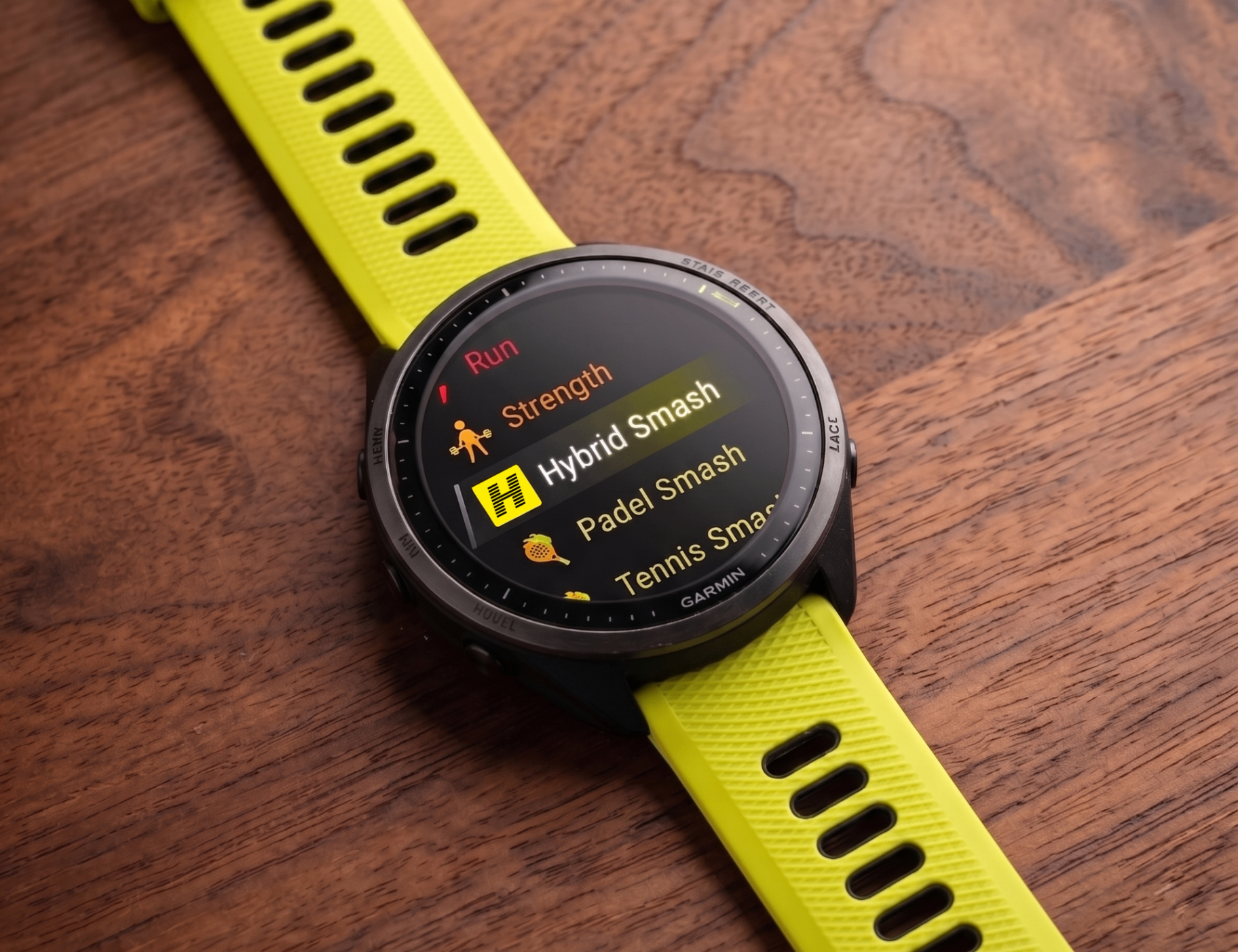
First-time setup
A one-time pass through Settings and you're ready to train.
- 1Open Settings on the watch.
- 2Pick your Weight Class. Supported: Men/Women Open & Pro, Men/Women Doubles & Doubles Pro, and Mixed Doubles.
- 3(Optional) Enable Prioritize Pace to see real-time pace centre-screen during runs.
- 4(Optional) Adjust the RoxZone toggle. Enables or disables transition timing between segments.
Disable Auto-Pause
Hybrid Smash relies on continuous timing for accurate splits. Garmin's Auto-Pause can pause your activity during slow movements like sled pushes or farmers carries, making your times look faster than they were.
On most watches: Settings → Activities & Apps → Run → Activity Settings → Auto Pause → Off
Training in detail

Free Training
For sessions where you decide the structure as you go. Start the workout, complete your warmup, then pick each station from the menu, up to 20 stations per session.
- Tap LAP at the end of each segment to open the station picker.
- If you press BACK from the picker by accident, you're not stuck — press LAP to reopen the picker, or SELECT to reach the pause menu.
- Capped at 20 picks (Run + Station segments combined).
Note: Free Training records as Generic Sport, so real-time pace isn't shown during runs. This protects your VO2 Max and Endurance scores in Garmin Connect from being skewed.
Pre-built programmes
Eight programmes spanning the typical training cycle from base building through to taper. Tap any programme to expand its details.
Every programme can be adjusted before starting, scale Station Dist/Reps, Station Weight, run distance and target pace independently. Your settings persist per workout.
Hyrox Simulation
Run the Hyrox race format (8 rounds of 1km run + station) as a training session. Same structure as Race Day but with all settings adjustable.
Custom workouts
Three slots for sequences you design yourself. Pick stations in any order, up to 20 stations per workout. Each custom workout has its own settings, remembered between sessions.
- Tap Add Station to append a segment from the 9-item picker (Run + 8 stations).
- Tap any existing segment to remove it (with confirmation).
- No reordering — to change order, remove and re-add.
- Max 20 segments per custom workout.
- Changes are saved incrementally as you add or remove segments.
Race Day
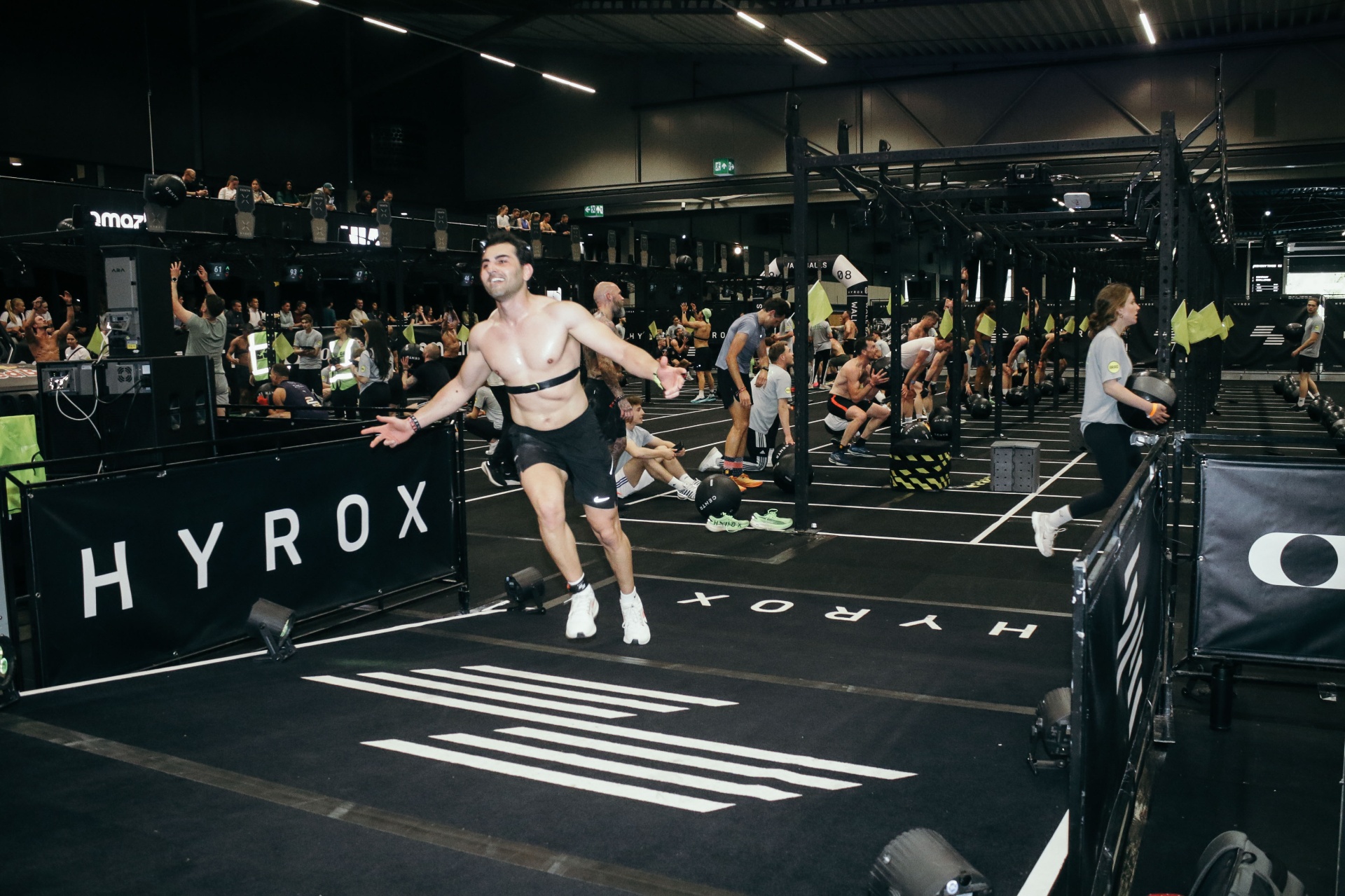
Race Day runs the canonical 8-round Hyrox sequence with all parameters locked to official values (1000 m runs, 100% station distance/reps, 100% weight). The only adjustable settings are Run Pace and Run Type. Run Type defaults to Indoor but can be set to Outdoor (enables GPS for accurate pace and distance) or Cardio (time-based runs, no pace shown).
Pro tip: for Indoor mode, pair a Stryd or Garmin footpod for more accurate pace tracking.
Run Types explained
Recommended! No GPS. Pace estimated from the wrist accelerometer, or from a paired footpod/Stryd. Records as a Running activity in Garmin Connect.
GPS enabled during runs. Most accurate pace and distance. Higher battery use. Records as a Running activity in Garmin Connect.
Time-based runs, no pace tracking. Your run target becomes a duration (Run Distance ÷ Run Pace = run time, e.g. 1000 m at 5:00 pace = a 5-minute run). Records as a Generic activity in Garmin Connect, which protects your VO2 max and Endurance estimates from being skewed by non-running work.
Free Training always uses Cardio (time-based) for runs.
Real-time pace colours
During a run, the pace strap under the segment timer (or the center strap when Prioritize Pace is on) changes colour based on how your current pace compares to your target Run Pace.
- Faster than 4:30 → purple-pink
- 4:30 to 5:15 → blue (on target)
- 5:15 to 5:45 → orange
- Slower than 5:45 → red
Note: Cardio runs and Free Training don't show pace at all (these record as Generic activities and Garmin's native UI doesn't surface pace for them). Indoor runs without a footpod show "--:--" until movement is detected.
Button controls during a workout
| Control | Action |
|---|---|
| LAP (or BACK) | Advance to the next segment. |
| DOWN button (or SWIPE UP) | Undo the last lap. Instant, no confirmation. |
| SELECT / START | Open the mid-workout pause menu. |
Per-workout settings & weight class scaling
Every workout (except Race Day, which is locked) has five settings that scale its segments:
Important: the percentages multiply against the canonical Hyrox values for your selected Weight Class. Setting Weight Class correctly (in Main Menu → Settings) is what makes the scaling produce real-world targets.
Run-target vibration
When a run hits its target distance (Indoor/Outdoor) or target time (Cardio), the watch fires a single light vibration pulse. Once per run, never repeats.
Make sure system vibration is enabled in your watch settings.
Previous Workouts
Every workout is saved automatically. Tap any past session to see the full breakdown, totals, splits per segment, heart rate, and a share button that re-opens the summary on this site.
Hybrid Smash keeps your last 20 sessions on the watch; older ones drop off. For long-term storage, every workout also syncs to Garmin Connect automatically.
Settings reference
Tips for accurate timing
- Disable Auto-Pause (see above).
- Use a heart-rate strap, not the wrist sensor, for accurate HR during station work.
- Pair a footpod for indoor pace tracking.
- Start your warmup as you arrive at the venue, the warmup phase doesn't count toward your race time.
Frequently asked questions
Support and contact
- Questions or feedback? Email multipassionate@outlook.com.
- Enjoying the app? Leave a review on the Connect IQ store, it genuinely helps.
Heads up:Hybrid Smash ships pre-built workouts and walks you through every session, but it's a training companion — not a coach, doctor, or physio. Nothing here is medical or personalised exercise advice. Chat with your trainer or physiotherapist before changing how you train, and listen to your body. Hybrid Smash can't be held responsible for any injuries.